
Activate your license key in the Image Hopper settings so you receive one-click WordPress updates and support from the Image Hopper team.
After activating the plugin, click the Settings link shown next to the Deactivate link on the Image Hopper item in the plugins list. You can also reach the settings page by navigating to Forms › Settings › Image Hopper.
Copy your license key to the License Key setting and click the Update Settings button to save. If successful, a green tick icon appears next to the input area. If there is a problem, a red cross is shown.
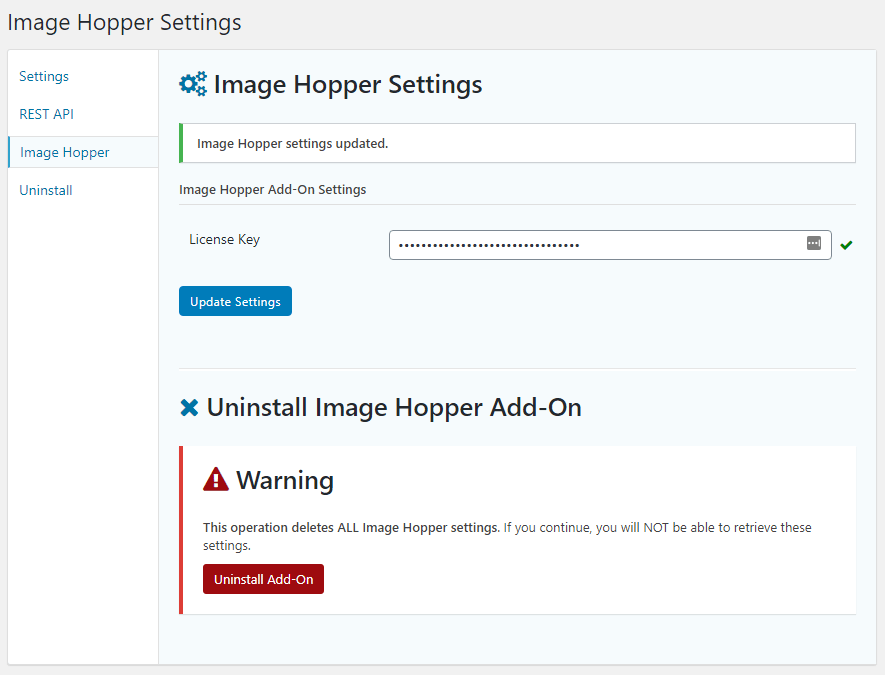
You can deactivate and remove your license key from the site by deleting it from the License Key setting and saving.
